
What are token pills?
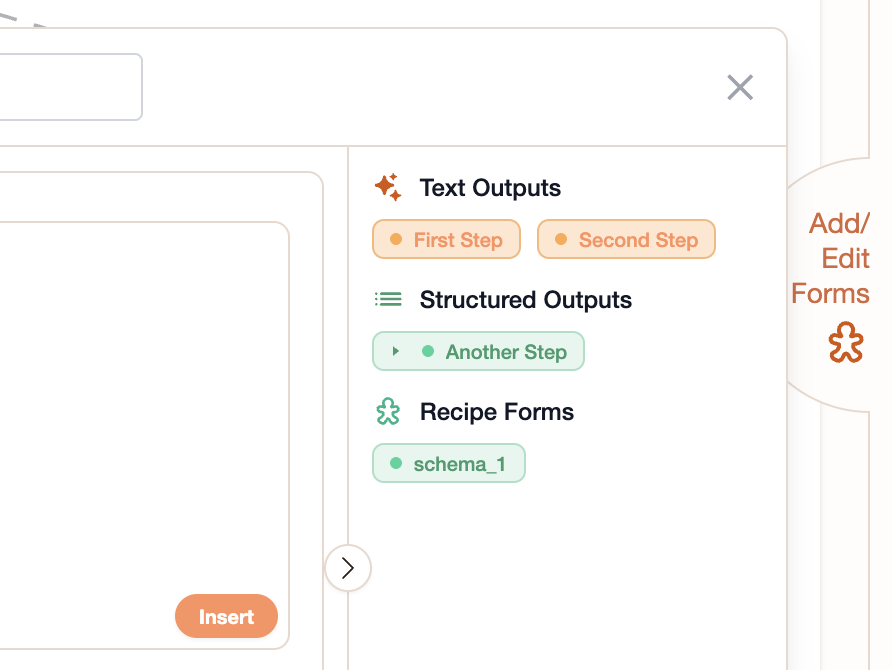
Token pills are colored badges that represent another step’s output. When you place a token pill in a prompt field, you’re saying “put this step’s result here.” They look like small rounded labels with:- An orange dot on the left (for text outputs)
- A green dot (for structured data fields)
- The step name and field shown as text
Inserting tokens
There are two ways to insert a token:Drag and drop
- Open a step’s settings panel (click the step on the canvas)
- Look at the tokens panel on the right side — it lists available outputs from other steps
- Drag a token pill from the panel into the prompt field
- The pill appears inline in your text
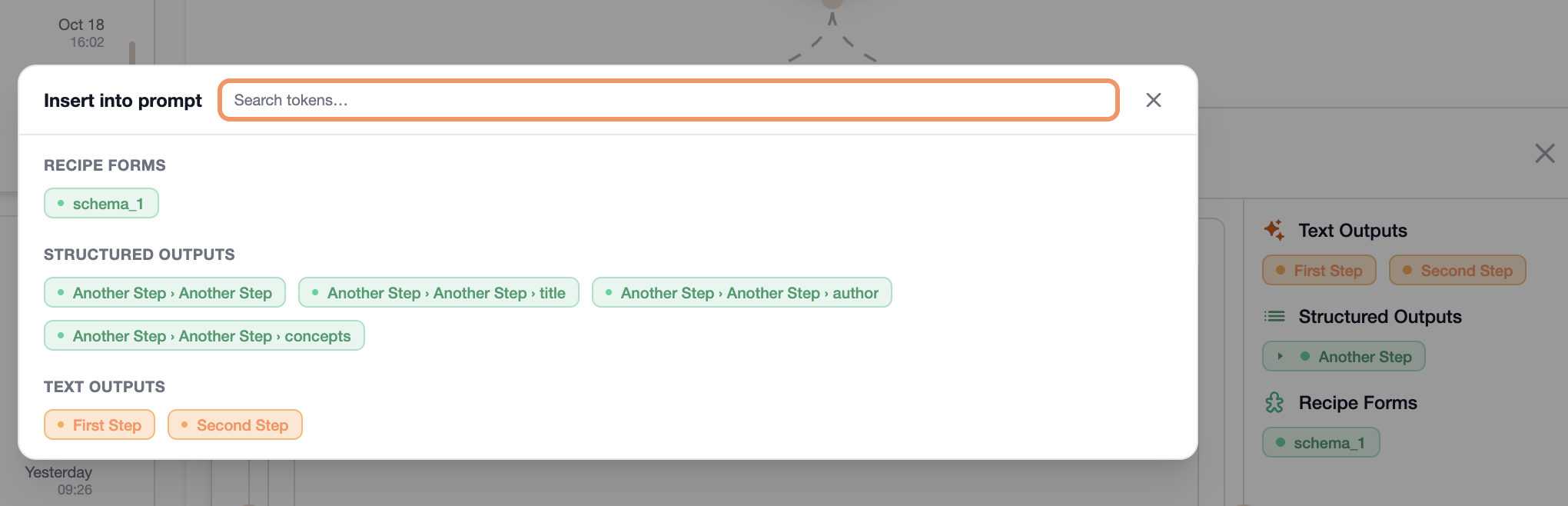
Insert button
- Click inside the prompt field where you want the token
- Click the Insert button in the toolbar
- A Token Picker modal opens with a searchable list of all available tokens
- Click one to insert it at your cursor position
Token colors
The pill color tells you what kind of data it carries:| Color | Meaning | Example |
|---|---|---|
| Orange (amber) | Text output from a step | The full text response from an Ask AI step |
| Green (emerald) | Structured data field | A specific field like company_name from a schema |
| Brown | Loop result | An array of outputs collected from a loop |
| Slate | Subrecipe output | Output from a nested recipe |
What tokens look like in prompts
When you insert a token, it appears as a colored pill in the prompt editor. Behind the scenes, StewAI uses the syntax{{step_id.field}}, but you don’t need to type this yourself — the drag-and-drop and picker handle it for you.
Advanced: Manual token syntax
Advanced: Manual token syntax
If you prefer typing tokens manually (or need to in certain fields), the syntax is:For example, if you have a step with ID
research, you can type {{research}} to insert its output.